.svg "edstellar")

Adobe Muse Corporate Training Program for Employees
Equip your team to build, maintain, and confidently transition Adobe Muse websites with Edstellar's instructor-led, fully customized Adobe Muse training, delivered onsite or online worldwide, so your organization keeps its web presence running and plans its next move with confidence.
(Virtual / On-site / Off-site)
.svg)
Keep Your Muse Websites Running, Plan Your Next Move
Adobe Muse is a website builder that let designers plan, design, and publish responsive websites visually, without writing code, using a familiar Adobe workspace of master pages, panels, and drag-and-drop layout tools. It is important to be clear about its status: Adobe discontinued Adobe Muse, ending new feature development in 2018 and ending all support on March 26, 2020, so it is a legacy tool rather than an actively maintained product. Many organizations still run live websites that were built in Muse, which is exactly why teams need people who can confidently open, edit, and maintain those sites while planning a smooth move to a supported web platform. This hands-on training prepares your team to work inside the Muse workspace, manage pages, text, images, buttons, links, color, and embedded HTML, and approach migration with a clear plan.
As organizations modernize their web presence while keeping existing sites online, this program helps your teams maintain Adobe Muse websites and prepare a confident transition to current web design tools. Empower your people with expert-led on-site, off-site, and virtual sessions delivered by Edstellar, a premier corporate training provider serving organizations worldwide in-person and virtually across popular languages. Fully customized to your live sites, brand guidelines, and target platform, the program turns Adobe Muse skills into lasting capabilities that lift performance across your web design, marketing, and digital teams.
By the end of the program, your team can navigate the Muse workspace, plan and build site structure with master pages, format text and images, create buttons, states, and menus, manage internal and external links, apply color, and insert custom HTML and social elements. Just as important, your team leaves with a practical view of how to audit, maintain, and migrate Muse sites, so your organization protects its existing web presence today and reduces risk as it moves to a modern, supported platform.
.svg)

- Navigate the Adobe Muse workspace and use Design, Preview, and Publish views with confidence.
- Plan and build site structure using master pages, the Pages panel, and consistent layouts.
- Format imported and on-page text and place and adjust images for clean, responsive pages.
- Create buttons, button states, and styled navigation menus for usable site interactions.
- Manage internal, external, and image links and apply color swatches for on-brand design.
- Insert custom HTML and social elements, and plan a safe migration to a modern web platform.
- Introduction and Interface
- Understanding what Adobe Muse is, its legacy status, and where it still fits today
- Touring the Muse workspace and navigating the interface efficiently
- Working across Design view, Preview mode, and Publish mode
- Panels and Assets
- Using the Layers panel to organize page elements
- Managing site files with the Assets panel
- Controlling site structure with the Pages panel
- Planning a Website
- Understanding website structure and information architecture
- Sketching a website layout before building
- Mapping pages and navigation for a clear user journey
- Building the Website
- Setting up a new site and managing site settings
- Using master pages for consistent headers, footers, and navigation
- Applying master pages across sections to keep design consistent
- Importing and Placing Text
- Importing text files into Muse pages
- Formatting imported text for readability
- Flowing and arranging text across the layout
- Formatting and Styles
- Applying text styles for consistent typography
- Adjusting text properties such as size, color, and spacing
- Reusing styles to keep formatting consistent across pages
- Adding and Placing Images
- Importing images into the site
- Placing images precisely on the page
- Organizing image assets for easy updates
- Adjusting Images
- Adjusting image properties for size and position
- Optimizing images for fast page loading
- Maintaining visual consistency across pages
- Buttons and States
- Creating buttons for actions and navigation
- Defining button states for hover and active feedback
- Testing interactions in Preview mode
- Menus and Styling
- Styling menu buttons for clear navigation
- Customizing menu appearance to match the brand
- Building consistent, usable navigation across the site
- External and Internal Links
- Adding external links to the website
- Setting link properties and targets
- Linking between internal pages for smooth navigation
- Image Links and Styling
- Making images clickable and adjusting image link settings
- Customizing link appearance for clarity
- Adjusting link hover effects for better usability
- Applying Color
- Applying color to shapes and page elements
- Working with color swatches for consistency
- Building an on-brand color scheme
- Managing Swatches
- Managing and organizing color swatches
- Creating custom color swatches for the brand
- Reusing swatches to keep design consistent
- Embedding HTML
- Inserting custom HTML code into Muse pages
- Managing embedded HTML elements within the layout
- Understanding the limits of embedded code in a legacy tool
- Social and Third-Party Elements
- Adding social media icons to pages
- Integrating social media feeds and widgets
- Testing embedded elements across views
- Publishing and Maintaining
- Publishing and updating existing Muse sites
- Auditing a live Muse site and documenting its structure and assets
- Maintaining content safely on an unsupported platform
- Planning a Migration
- Assessing risk and the case for moving off a discontinued tool
- Mapping Muse content and design to a modern web platform such as Webflow, WordPress, or Figma
- Building a practical, low-disruption migration plan for your team
- Web Designers
- UX/UI Designers
- Graphic Designers
- Digital Marketing Specialists
- Content Creators
- Freelance Designers
- Front-End Developers
- Brand Specialists
- Marketing Coordinators
- Visual Designers
- Creative Directors
- Managers
Participants need only basic computer literacy and comfort with everyday design or office software; no prior Adobe Muse experience is required. Familiarity with your existing websites, brand guidelines, and the pages your team maintains helps, and team members who already use other Adobe tools or any website builder will move faster, but the program starts from the Muse workspace and builds up to pages, text, images, buttons, links, color, and embedded HTML, so newcomers can follow along. Because Adobe Muse is a discontinued tool, the program also assumes an interest in maintaining current sites and planning a move to a modern platform. Edstellar tailors the depth, pace, and examples to your team's current skills and the sites your organization runs, so everyone can apply the methods directly to real projects.


.webp "Virtual Adobe Muse Training")
.webp "On-site Adobe Muse Training")
.webp "Off-site Adobe Muse Training")
64 hours of group training (includes VILT/In-person On-site)
Tailored for SMBs
160 hours of group training (includes VILT/In-person On-site)
Ideal for growing SMBs
Tailor-Made Trainee Licenses with Our Exclusive Training Packages!
400 hours of group training (includes VILT/In-person On-site)
Designed for large corporations
Tailor-Made Trainee Licenses with Our Exclusive Training Packages!
Unlimited duration
Designed for large corporations
Experienced Trainers
Our trainers are drawn from a vetted global network and bring years of industry expertise, keeping every session practical and impactful.
Proven Quality
With a strong global track record, Edstellar is known for quality and engaging delivery.
Industry-Relevant Curriculum
Our programs are built by experts to match the demands of today's industry.
Fully Customizable
Every program can be tailored to your organization's goals.
Comprehensive Support
We provide pre- and post-session support for a complete learning experience.
Global Multi-Location & Multilingual Training Delivery
We deliver in multiple languages to support diverse global teams.
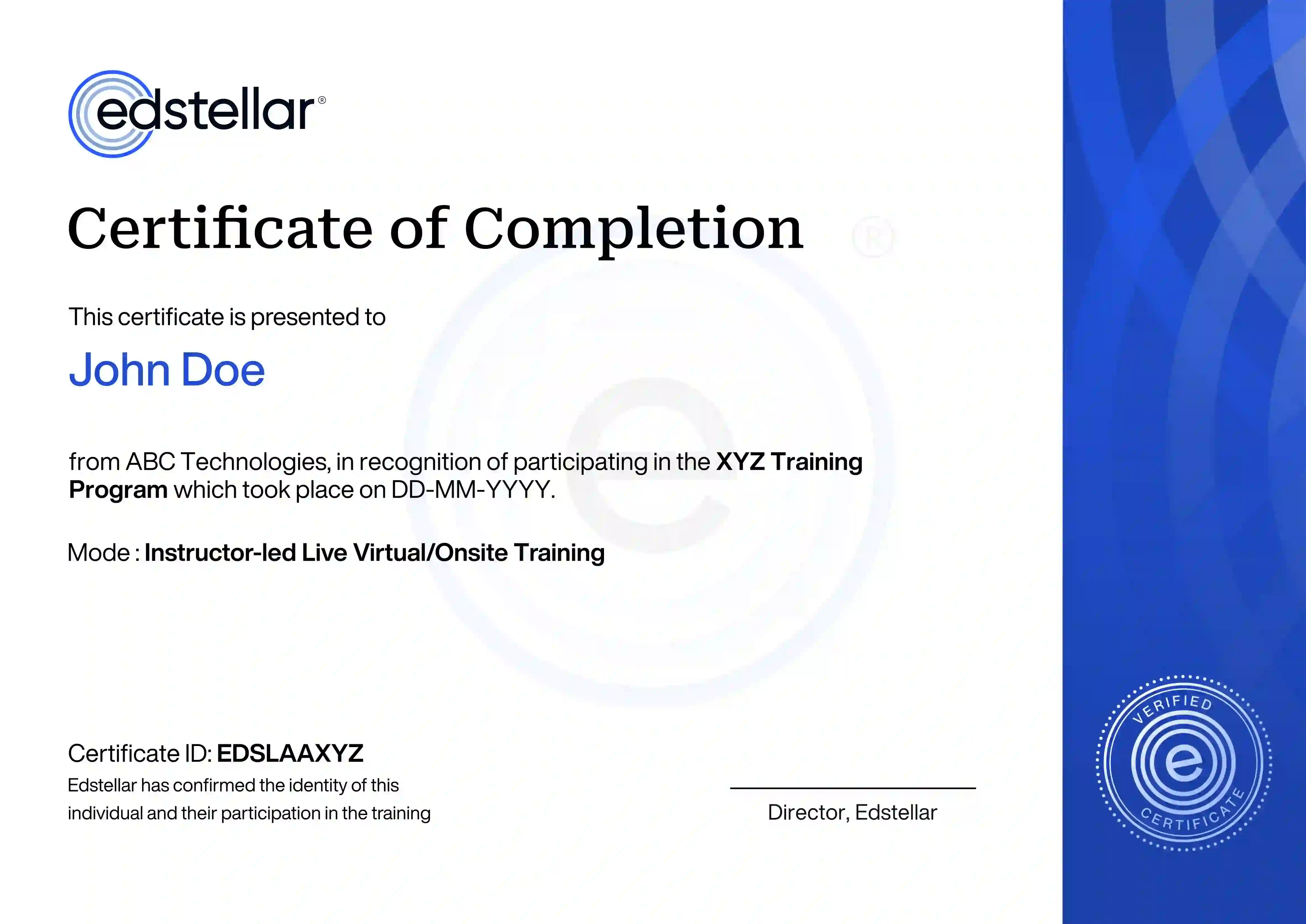
Recognition That Motivates Your Team

Frequently Asked Questions
Other Related Corporate Training Courses


Explore More Courses


.svg)
.svg)
.svg)

.svg)