Drive Team Excellence with Microsoft Outlook Corporate Training

Microsoft Outlook is a communication and organization tool widely used in corporate environments to manage emails, calendars, contacts, and tasks efficiently. Outlook is vital in facilitating seamless internal and external communication, enabling organizations to maintain order and efficiency in their operations. The need for a Microsoft Outlook training course stems from its complexity and the continuous updates it receives, which can enhance an organization's productivity when utilized correctly. 

Edstellar's instructor-led Microsoft Outlook training course offers virtual/onsite training options conducted by seasoned experts in the domain. The course is tailored to meet the organization's unique requirements, with a customizable curriculum that covers practical, real-world applications of Outlook's features. Edstellar's training includes hands-on sessions, expert insights, and flexibility in scheduling, ensuring that your team learns the software and applies its functionalities to enhance efficiency.

Get Customized Expert-led Training for Your Teams
Customized Training Delivery
Scale Your Training: Small to Large Teams
In-person Onsite, Live Virtual or Hybrid Training Modes
Plan from 2000+ Industry-ready Training Programs
Experience Hands-On Learning from Industry Experts
Delivery Capability Across 100+ Countries & 10+ Languages
""""

Skills Your Employees Will Gain

These are the core, hands-on capabilities your team builds during the program.

  • Email Management
    Email Management is the ability to efficiently organize, prioritize, and respond to emails. This skill is important for roles like administrative assistants and project managers, ensuring effective communication and productivity.
  • Calendar Scheduling
    Calendar Scheduling is the ability to effectively organize and manage appointments and events. this skill is important for administrative roles, ensuring efficient time management and coordination.
  • Contact Management
    Contact Management is the systematic organization and tracking of interactions with clients and leads. This skill is important for sales and marketing roles to enhance relationships, streamline communication, and boost conversion rates.
  • Task Organization
    Task Organization is the ability to prioritize and manage tasks efficiently. this skill is important for roles like project management and administration, ensuring deadlines are met and resources are utilized effectively.
  • Meeting Planning
    Meeting Planning is the ability to organize, coordinate, and execute effective meetings. This skill is important for roles in project management and administration, ensuring clear communication and efficient decision-making.
  • Attachments Handling
    Attachments Handling is the ability to manage, organize, and secure digital files sent via email or other platforms. This skill is important for roles in administration, IT, and customer support, ensuring efficient communication and data integrity.

What Your Team Will Achieve After This Training

  • Apply advanced email management techniques to enhance communication efficiency within professional settings
  • Utilize Outlook's calendar features to schedule meetings effectively, ensuring optimal time management across teams
  • Integrate task management tools within Outlook to prioritize and track project progress, improving team productivity
  • Implement Outlook's security features to protect sensitive information and maintain confidentiality in business communications
  • Leverage Outlook's search functionalities to quickly find emails, contacts, and documents, reducing time spent on information retrieval

Topics & Program Outline

The curriculum is organized into focused modules built by industry experts and delivered virtually or on-premise. Interactive sessions reflect the evolving demands of the workplace, keeping the learning both relevant and practical.

  1. Outlook inbox
    • Sorting and organizing emails
    • Managing inbox settings
  2. Working in email
    • Drafting and formatting messages
    • Managing email folders
  3. Replying
    • Reply vs. reply all
    • Formatting replies
    • Adding attachments to replies
  4. Contacts screen
    • Navigating the contacts screen
    • Searching and filtering contacts
  5. Contacts – email addresses
    • Adding email addresses to contacts
    • Editing contact details
    • Importing and exporting contacts
  6. Creating a new contact
    • Filling in contact information
  7. Advantages of using email
    • Benefits of using email
  8. Email etiquette
    • Writing professional emails
    • Managing email tone
  9. Email viruses
    • Protecting against email viruses
    • Reporting and removing viruses
  10. Digital signatures
    • Understanding digital signatures
    • Setting up digital signatures
    • Verifying digital signatures
  1. Outlook components
    • Overview of Outlook components
    • Customizing the Outlook interface
  2. Inbox ribbons
    • Navigating the home ribbon
    • Using send and receive
    • Organizing emails with the folder ribbon
  3. Home
    • Managing email rules
    • Setting out-of-office replies
  4. Send and receive
    • Managing send/receive settings
  5. Folder
    • Creating and managing folders
    • Folder permissions
  6. View
    • Customizing email views
    • Setting view options
  7. Calendar ribbons home and folder
    • Creating appointments
    • Customizing calendar views
    • Sharing calendars
  8. Contact ribbons – send/receive
    • Updating contact information
    • Sending emails to contacts
    • Contact groups
  9. Folder view
    • Customizing folder pane
    • Navigating folders
    • Folder cleanup tools
  10. Accessing the reading pane
    • Customizing the reading pane
    • Reading pane options
  11. Message options ribbon
    • Setting message importance
    • Using delivery and reading receipts
    • Encrypting emails
  12. Moving objects to a folder
    • Drag-and-drop functionality
  13. QAT
    • Customizing the quick access toolbar
    • Adding and removing commands
    • Using QAT for efficiency
  14. Adding importance
    • Marking emails as important
    • Using importance for prioritization
  15. Requesting delivery receipts
    • Setting up delivery receipts
    • Tracking email delivery
    • Managing receipt responses
  16. CC and BCC
    • Understanding CC and BCC
    • When to use CC vs. BCC
    • Managing recipients
  17. Add comments
    • Adding comments to emails
    • Editing and deleting comments
    • Using comments for collaboration
  18. Related messages
    • Finding related messages
    • Organizing conversations
    • Using conversation view for related messages
  1. File attachments
    • Attaching files to emails
    • Managing attachment size
    • Sending multiple attachments
  2. Inserting file attachments
    • Using drag and drop to attach files
    • Inserting attachments from cloud storage
    • Attaching files from recent items
  3. Attaching other outlook items
    • Attaching emails to a new message
    • Inserting calendar events as attachments
    • Attaching contacts to emails
  4. Previewing attachments
    • Using the attachment previewer
    • Previewing different file types
  5. Opening attachments
    • Opening attachments safely
    • Saving opened attachments
    • Attachment security warnings
  6. Saving attachments
    • Saving attachments 
    • Saving to cloud storage
  1. Message flags
    • Understanding flag options
    • Customizing flag colors
    • Setting flag reminders
  2. Flagging messages in the message list
    • Quick flagging messages
    • Removing flags
  3. Sending messages with a flag
    • Setting flags for recipients
    • Flagging for follow-up
    • Managing flagged messages
  1. Spamming
    • Identifying spam emails
    • Preventing spam
  2. Phishing
    • Recognizing phishing attempts
    • Protecting against phishing
    • Reporting phishing emails
  3. Junk mail options
    • Configuring junk mail settings
    • Blocking senders
  4. Mark messages as junk mail
    • Marking emails as junk
    • Automatically filtering junk mail
    • Reviewing the junk email folder
  5. Mark messages and senders as safe
    • Adding to the safe senders list
    • Importing and exporting safe lists
  6. Deleting junk emails
    • Managing and deleting junk emails
    • Emptying the junk email folder
    • Junk email folder options
  1. Calendar
    • Overview of the Outlook calendar
    • Creating and managing appointments
    • Customizing calendar views
  2. Calendar arrangement
    • Viewing multiple calendars
    • Customizing calendar settings
  3. Time zones
    • Scheduling across time zones
    • Displaying multiple time zones
    • Managing time zone settings
  4. Create new calendar
    • Adding a new calendar
    • Sharing and permissions
  5. Working with multiple calendars
    • Overlaying calendars
    • Sharing calendars with colleagues
    • Managing calendar groups
  6. Weather bar
    • Enabling the weather bar
    • Customizing weather settings
  1. People view
    • Navigating the people view
    • Customizing the people view
  2. Contacts
    • Managing contact information
    • Creating and editing contacts
    • Organizing contacts into groups
  3. New contact group
    • Creating a contact group
    • Adding members to a group
    • Sending emails to a contact group
  4. Remove members of the contact group
    • Removing individuals from a group
    • Managing group memberships
    • Deleting a contact group
  1. To-do bar
    • Utilizing the To-Do Bar for tasks
    • Customizing the To-Do Bar
    • Integrating calendar and tasks
  2. Creating tasks
    • Adding new tasks
    • Setting task priorities
    • Assigning tasks to categories
  3. Task views
    • Navigating task views
    • Customizing task views
    • Sorting and filtering tasks
  4. Deleting and printing
    • Removing tasks
    • Printing task lists
  1. Rules
    • Creating email rules
    • Managing and editing rules
  1. Creating a new meeting
    • Setting up a meeting invite
    • Adding people
    • Choosing meeting settings
  2. New meeting
    • Utilizing the scheduling assistant
    • Setting meeting reminders
    • Managing meeting responses
  3. Scheduling assistant
    • Scheduling resources
    • Viewing attendee availability
  4. Recurring meetings
    • Setting up recurring meetings
    • Managing recurrence patterns
    • Editing recurring meetings

Who Should Attend?

This program suits professionals at many levels across the organization, including:

  • Administrative Assistants
  • Executive Assistants
  • Office Coordinators
  • Customer Service Representatives
  • IT Support Technicians
  • Email Administrators
  • Project Coordinators
  • Business Analysts
  • Sales Representatives
  • HR Specialists
  • Marketing Coordinators
  • Managers

What are the Prerequisites?

Employees with a basic understanding of computer literacy and familiarity with email communication can take up the Microsoft Outlook training course.

Request a Quote for your Corporate Training Requirements

Valid number

Delivering Training for Organizations across 100 Countries and 10+ Languages

Choose the Format That Fits Your Team

We design training your teams actually engage with, and deliver it the way that suits you best. Through a vetted global trainer network, Edstellar runs sessions in 10+ languages with consistent quality anywhere.

Virtual Microsoft Outlook Training

Virtual / online: expert-led live sessions delivered anywhere, with consistency and easy scheduling.

We deliver anywhere worldwide
Standardized content for consistent outcomes
Join from own workspace, no travel
We scale to large groups across sites
Interactive tools keep remote learners engaged
On-site Microsoft Outlook Training

On-site (in-house): immersive, instructor-led learning at your office.

Our trainers run face-to-face at your office
We tailor setup/content to your workplace and tools
Group exercises drive collaboration
Live demos +  hands-on practice
Direct trainer access to clarify doubts
Off-site Microsoft Outlook Training

Off-site: focused, instructor-led group learning away from everyday workplace distractions.

We host your teams at a venue of your preferred choice
Built-in group activities for bonding
Full uninterrupted schedule for focus/retention
Boosts morale and signals commitment

Get a Proposal Shaped to Your Needs

Need pricing for onsite, offsite, or virtual delivery? Get a proposal tailored to your team's needs.

Request a Group Training Quote
""
How Many Team Members Need Training?
Please select an option or fill in the custom field.
"'

Is Your Corporate Training Requirement Only for Microsoft Outlook?

Please select at least one course.
""
Add the List of Training Workshops
search icon

      Please select the course

      No. of Courses selected: 0

      Clear

      Upload a CSV

      Send us your Training Requirements in 3 Easy steps

      1. 1
      2. 2
        Add the required training workshops
      3. 3
        Upload to get a quick quote or email it to contact@edstellar.com

      ""

      Looking for a Complete Package?

      Looking for a one-time pricing option for all your annual training requirements?

      View Corporate Training Packages
      ""
      Select the Option that Best Describes Your Corporate Training Requirement

      Please select an option or choose from the recurring options.
      ""
      Verify and Submit Your Request

      Review Your Corporate Training Selection Summary

      Training Program: Microsoft Outlook Training

      1. No of Team Members

      2. Selected Training Preference

      3. Selected Recurring Sessions

      1

      Review your Requirements

      Training Workshops Selected :


        Excel
        File has been
        successfully uploaded.
        Fill the form to submit
 your details
        Submit Your Professional Contact Information
        Valid number
        We've received your enquiry. Our team will be in touch soon.
        Oops! Something went wrong while submitting the form.
        Starter
        120 licences

        Tailor-Made Trainee Licenses with Our Exclusive Training Packages!

        View Package

        64 hours of group training (includes VILT/In-person On-site)

        Tailored for SMBs

        Growth
        320 licences

        Tailor-Made Trainee Licenses with Our Exclusive Training Packages!

        View Package

        160 hours of group training (includes VILT/In-person On-site)

        Ideal for growing SMBs

        Enterprise
        800 licences

        Tailor-Made Trainee Licenses with Our Exclusive Training Packages!

        View Package

        400 hours of group training (includes VILT/In-person On-site)

        Designed for large corporations

        Custom
        Unlimited licenses

        Tailor-Made Trainee Licenses with Our Exclusive Training Packages!

        View Package

        Unlimited duration

        Designed for large corporations

        What Sets Edstellar Apart

        Experienced Trainers

        Our trainers are drawn from a vetted global network and bring years of industry expertise, keeping every session practical and impactful.

        Proven Quality

        With a strong global track record, Edstellar is known for quality and engaging delivery.

        Industry-Relevant Curriculum

        Our programs are built by experts to match the demands of today's industry.

        Fully Customizable

        Every program can be tailored to your organization's goals.

        Comprehensive Support

        We provide pre- and post-session support for a complete learning experience.

        Global Multi-Location & Multilingual Training Delivery

        We deliver in multiple languages to support diverse global teams.

        Hear from Organizations We've Trained

        "The Microsoft Outlook training exceeded my expectations in every way. As a Senior Software Engineer, I gained comprehensive knowledge of industry best practices that transformed my approach to technical practical and immediately applicable. I've successfully implemented these advanced techniques in production environments with measurable impact. The instructor's expertise in hands-on exercises made complex concepts crystal clear and actionable.”

        Tristan Hawkins

        Senior Software Engineer,

        Global Technology Solutions Provider

        "This Microsoft Outlook course transformed my approach to technical mastery solutions. The comprehensive modules on interactive labs were invaluable for our strategic projects. I can now confidently implement practical applications for diverse client requirements. The deep coverage of expert-led workshops gave me advanced skills I immediately applied to We delivered a high-visibility enterprise project two months ahead of schedule.”

        Elias Schneider

        Senior Software Engineer,

        Digital Innovation Platform

        "As a Senior Software Engineer leading technical mastery operations, the Microsoft Outlook training provided our team with essential advanced methodologies expertise at scale. The comprehensive modules on practical across our complete operational footprint. We've successfully deployed these methodologies across all regional operations centers. This course has proven invaluable for driving our organizational transformation and sustained excellence.”

        Zaid Omar

        Senior Software Engineer,

        Technology Consulting Services Company

        “Edstellar’s IT & Technical training programs have been instrumental in strengthening our engineering teams and building future-ready capabilities. The hands-on approach, practical cloud scenarios, and expert guidance helped our teams improve technical depth, problem-solving skills, and execution across multiple projects. We’re excited to extend more of these impactful programs to other business units.”

        Aditi Rao

        L&D Head,

        A Global Technology Company

        Recognition That Motivates Your Team

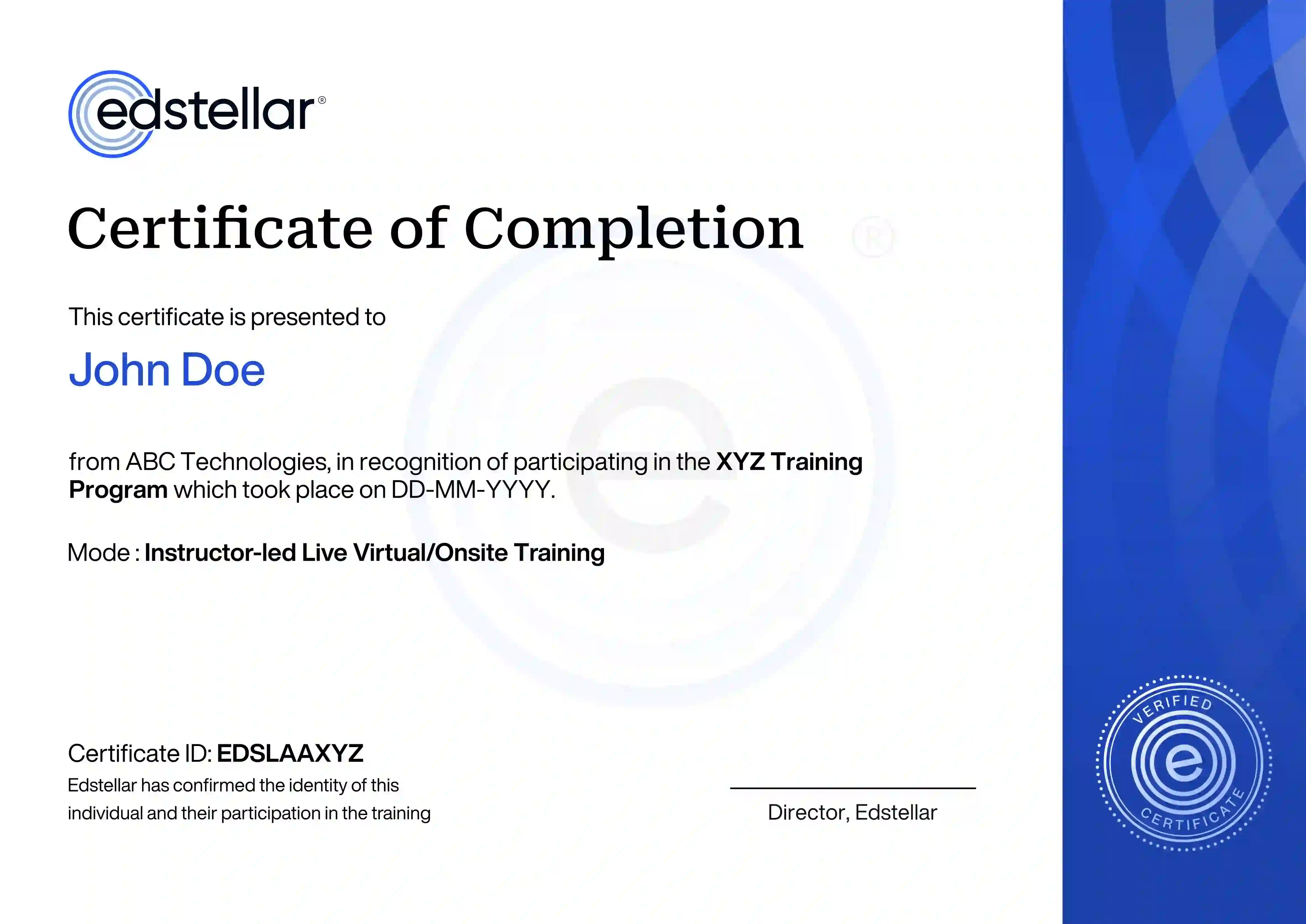
        Upon successful completion of the training course offered by Edstellar, employees receive a course completion certificate, symbolizing their dedication to ongoing learning and professional development.

        This certificate validates the employee's acquired skills and is a powerful motivator, inspiring them to enhance their expertise further and contribute effectively to organizational success.

        Recognition That Motivates Your Team