

Microsoft 365 and SharePoint for Collaborative Teams Corporate Training
Instructor-led training that helps teams collaborate confidently with Microsoft 365 and SharePoint.
This 12-hour, instructor-led program turns everyday Microsoft 365 and SharePoint habits into a team strength. Your people practice writing clear updates, sharing with control, and running meetings that end with owners, then prove it in a capstone collaboration hub.
Instructor-led group trainingVirtual / on-site / off-site10 languagesDelivered inEnglish, Spanish, Mandarin, German, Arabic, Portuguese, Hindi, French, Japanese, Italian100+ countriesWe have delivered inUnited States, United Kingdom, India, Canada, Germany, France, Netherlands, UAE, Saudi Arabia, Singapore, Australia, Japan, Brazil, South Africa and 90+ more countries
How we build a confident, connected team
The Edstellar TEAM COLLABORATION Capability Model
Diagnose collaboration habits
We assess how your teams share, meet, and track work in Microsoft 365 to find the friction points.
Standardize team workspaces
Teams agree on channel, library, and permission conventions they can apply from day one.
Practice everyday scenarios
Role plays and practice scenarios rehearse posting, co-authoring, and stakeholder updates.
Measure confident adoption
Instructors observe practice scenarios and score the habits that matter for real collaboration.
Scale across the team
The capstone hub gives every learner a reusable blueprint to repeat the setup with their own teams.





Need more than one program?Get a group quote
Trusted as a Leading Corporate Training Provider by
















Program Overview: What is Microsoft 365 and SharePoint for Collaborative Teams?
Microsoft 365 & SharePoint for Collaborative Teams is a 12-hour corporate training program for team leads, project coordinators, and knowledge workers. It covers navigating the Microsoft 365 collaboration landscape, communicating with clarity in Teams and channels, sharing and co-authoring with version control, and managing stakeholders through SharePoint workspaces. Learners finish by launching their own team's collaboration hub.
The program runs as five instructor-led modules with six practice scenarios. Learners map a new project to the right Microsoft 365 spaces, rewrite vague channel posts into clear updates and run a mock standup, rescue a conflicted document and restore the right version, and brief a difficult stakeholder with a one-page SharePoint update. Instructors coach each scenario, giving feedback on clarity and professionalism. The three-hour capstone has learners launch their team's collaboration hub and present it to the group.
Teams that misuse Microsoft 365 drown in channels, lose documents, and confuse stakeholders with scattered updates. This program teaches them to use the tools as a system: the right space for each conversation, clean co-authoring, and SharePoint pages that keep everyone aligned. The payoff is a team that collaborates smoothly instead of chasing information.
The capstone leaves each learner with a launched collaboration hub for their own team: a space map, communication norms, a document structure with version control habits, and a stakeholder SharePoint page, presented to the group with live stakeholder questions. Teams return with a working hub they can use on Monday morning, so the investment in Microsoft 365 finally turns into the productivity it promised.
The program blends instructor-led learning with constant practice. Learners rewrite real-style posts, run mock meetings, rescue conflicted documents, and brief simulated stakeholders, building habits they can use on Monday morning. It closes with a capstone showcase where each group presents a working collaboration hub and defends its design choices.
What's Included in this Workshop for Your Enterprise Teams
- 1
Learn the landscape
Navigate Teams, SharePoint, OneDrive, and Planner with purpose.
- 2
Communicate with clarity
Write posts and run meetings that get fast, useful responses.
- 3
Share with confidence
Co-author, version, and permission files without losing control.
- 4
Manage stakeholders
Brief and align stakeholders through SharePoint workspaces.
- 5
Launch a hub
Build and present a working collaboration hub in the capstone.
- 12 hours of live, instructor-led training
- Choice of virtual, onsite, or hybrid delivery
- Role plays and practice scenarios in every module
- Capstone collaboration hub showcase
- Scenario packs and hub templates to reuse
- Post-training refreshers and quick guides
Build your team's skills. Anywhere in the world.
Real-world use cases
from day one
Instructor-led training
for your teams
Delivered globally
in 100+ countries


Enterprise Training Solutions Customized for Your Company
One partner for instructor-led corporate training, delivered the way your teams work.
Request a Training Quote- Customized Training Delivery
- Scale Your Training: Small to Large Teams
- In-person Onsite, Live Virtual or Hybrid Training Modes
- Plan from 2000+ Industry-ready Training Programs
- Hands-On Labs on Live Infrastructure, Led by Industry Experts
Microsoft 365 and SharePoint for Collaborative Teams Course Topics and Program Outline
Five modules take your team from navigating Microsoft 365 to launching a working collaboration hub. Each module mixes instructor-led learning with role plays and practice scenarios, ending in a capstone showcase where groups present their hub and respond to live stakeholder questions.
Built by Edstellar with workplace collaboration specialists
Built by facilitators who coach distributed teams on everyday Microsoft 365 habits, shaped around your workflows and use cases.
We map how your teams use Microsoft 365 and SharePoint today, then shape scenarios around their real collaboration pain points.
Instructor-led sessions introduce Teams, SharePoint, and OneDrive workflows with live demos and guided walkthroughs.
Learners rehearse in role plays and practice scenarios: drafting posts, running meetings, and resolving sharing conflicts.
In the capstone, teams launch a working collaboration hub and present it for instructor and peer feedback.
12 hours of instructor-led practice with a capstone showcase.
Delivered as
Delivered live by an instructor, in a room or online, with every learner practicing the same workflows they will use at work.

Scenario: map a new project to the right Microsoft 365 spaces and explain each choice to a teammate.
learna)Mapping Teams, SharePoint, OneDrive, and Planner to daily teamwork
b)Joining teams, channels, and SharePoint sites without getting lost
c)Choosing chat, channel posts, or email for each message
d)Setting up notifications and focus time so alerts stop interrupting
Practice scenario: rewrite vague channel posts into clear updates and run a five-minute mock standup.
learna)Writing clear, scannable posts that get quick responses
b)Using @mentions, threads, and reactions without overusing them
c)Running short, structured Teams meetings with shared agendas
d)Giving status updates that stakeholders can act on
Practice scenario: rescue a conflicted document, restore the right version, and route feedback to the right owners.
practicea)Sharing files with the right permissions for internal and guest users
b)Co-authoring documents and resolving editing conflicts smoothly
c)Using version history to recover and compare earlier drafts
d)Requesting and tracking feedback without endless email chains
Practice scenario: brief a difficult stakeholder with a one-page SharePoint update and a clean approval list.
practicea)Organizing document libraries with folders, metadata, and views
b)Building simple SharePoint pages that brief stakeholders at a glance
c)Collecting approvals and sign-offs through shared lists
d)Handling sensitive content with permission levels and sharing links
Capstone showcase: present your collaboration hub to the group and respond to live stakeholder questions.
applya)Designing a hub structure for a simulated client project
b)Setting channels, libraries, and permissions for each workstream
c)Publishing a stakeholder update page and running a review
d)Presenting the hub and defending design choices in a showcase
Customize this program tailored to your team?
Tell us your training needs: what your team already works with, the level they’re at, and the topics you want them to focus on. We’ll adjust the modules, duration and hands-on labs, and send you a customized outline for your group.
Key Skills and Outcomes Your Team Will Gain
By the end of the program, your team will collaborate in Microsoft 365 with more clarity, confidence, and control.
Navigate Teams, SharePoint, and OneDrive
Find any conversation, file, or workspace fast, and know exactly where each piece of work belongs.
Write clear posts and updates
Draft scannable channel posts and status updates that get quick, useful responses from busy colleagues.
Run short, structured virtual meetings
Plan agendas, keep Teams meetings on track, and close with clear owners and next steps.
Share and co-author with control
Set the right permissions, co-author smoothly, and resolve editing conflicts without losing work.
Recover and compare versions
Use version history to restore earlier drafts and compare changes when collaboration goes sideways.
Build stakeholder-ready pages
Create concise SharePoint pages and approval lists that brief stakeholders at a glance.
Launch a reusable collaboration hub
Design and present a working hub your own team can copy for the next project.
Teams that Benefit from this Microsoft 365 and SharePoint for Collaborative Teams Group Training
This program helps any team that works in Microsoft 365 collaborate with more clarity and less friction. Scenarios adapt to each cohort's roles, tools, and experience, so every group practices the workflows it owns.
Keep deals moving with clean shared workspaces
Sales teams centralize proposals, pricing, and follow-ups in shared channels and libraries, so nothing slips between inboxes.
Workflow friction
- Proposals scattered across email threads
- Unclear file permissions slow reviews
- Missed follow-ups in busy inboxes
How the program helps
- Faster proposal turnaround with co-authoring
- Clear deal visibility in shared channels
- Cleaner handoffs between reps and managers
Practice use cases
- proposal co-authoring
- deal room channels
- approval tracking
- client update pages
Coordinate campaigns without content chaos
Marketing teams plan campaigns, review assets, and publish updates in one workspace instead of scattered drives and chats.
Workflow friction
- Asset versions multiply across drives
- Feedback lost in long chat threads
- Stakeholders miss launch updates
How the program helps
- One source of truth for campaign assets
- Faster asset reviews with tracked feedback
- Clearer launch updates for stakeholders
Practice use cases
- campaign asset libraries
- content review flows
- launch update pages
- brief templates
Standardize how work gets tracked and shared
Operations teams use consistent channels, lists, and libraries so every workstream is visible and every owner is clear.
Workflow friction
- Status buried in scattered chats
- Inconsistent folder structures
- Approvals stall without visibility
How the program helps
- Consistent tracking across workstreams
- Fewer status meetings, clearer updates
- Auditable records in shared libraries
Practice use cases
- workstream channels
- shared task lists
- status update pages
- approval lists
Share sensitive content with confidence
People teams manage onboarding, policies, and feedback in permissioned spaces, balancing openness with confidentiality.
Workflow friction
- Sensitive files shared too broadly
- Onboarding materials hard to find
- Policy updates reach people late
How the program helps
- Secure spaces for sensitive documents
- Consistent onboarding hubs for new joiners
- Clearer policy communication
Practice use cases
- onboarding hubs
- policy libraries
- permissioned folders
- feedback collection
Each cohort's scenarios adapt to the functions in the room, so every team practices the workflows it owns.
Prerequisites: This program suits anyone who collaborates in Microsoft 365, from new joiners to experienced team leads. No SharePoint administration experience is needed; basic familiarity with Teams and email helps but is not required. Scenarios adapt to each cohort's tools and context, so mixed-experience groups practice at the right level.
New hires to team leads
Skills progress from navigating workspaces to launching hubs, with each level practiced in realistic team scenarios.
One program that grows with collaboration careers, from first login to confident hub ownership.
Mixed cohort, or several teams at once?
We can tailor the training to different teams, roles, and experience levels within the same program.
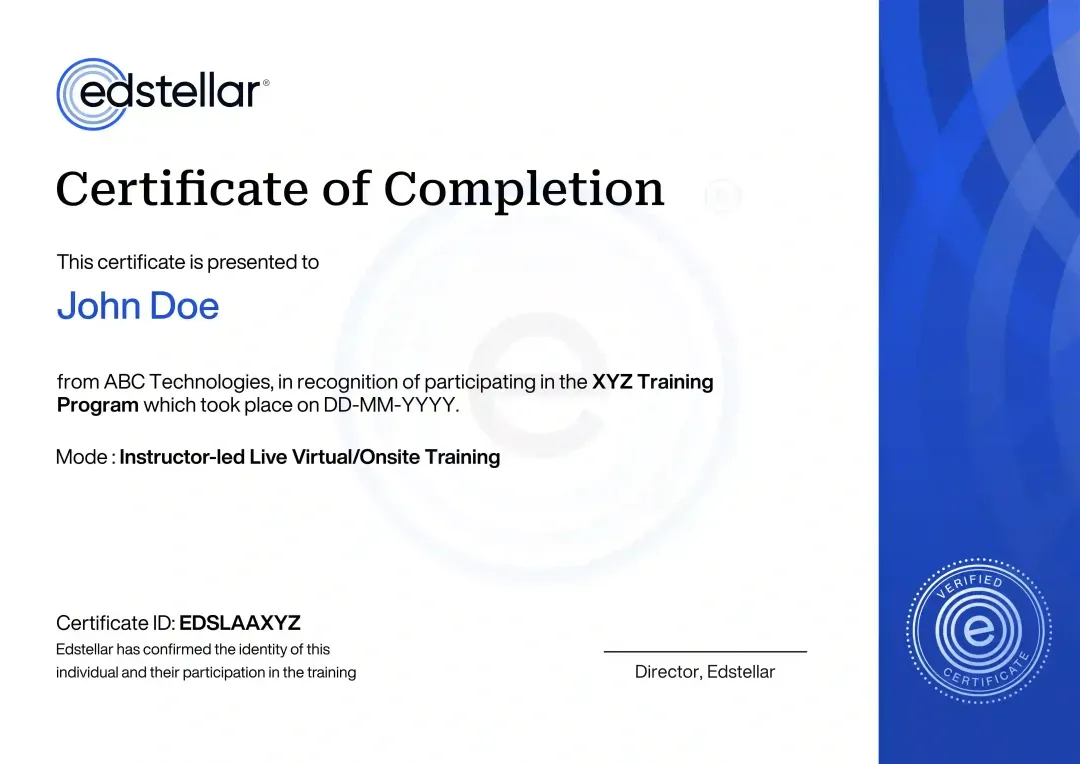
Certificate of Training Completion.
On successful completion, employees receive an Edstellar course completion certificate, recognizing their commitment to ongoing learning and professional development. It validates the skills they have built and motivates them to keep growing and contribute to organizational success.
Earned, not attended. Awarded on completion of all hands-on labs and the capstone project.
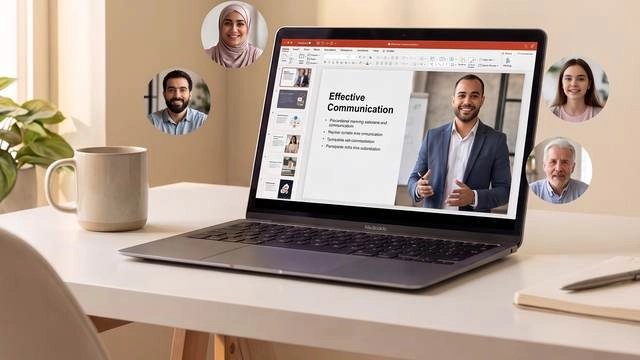
Training Delivery Modes: Virtual, Onsite and Hybrid
Choose how your team learns: live virtual sessions, instructor-led training at your office, or a hybrid of both.
Hybrid Training
Part of the cohort joins in the room and part joins live online, with the instructor coaching both groups through the same role plays and scenarios.
- Same live scenarios for room and remote learners
- Breakouts mix onsite and virtual participants
- One instructor coaching the whole cohort
- Capstone showcase works across both settings

Onsite Training
An instructor delivers the full program at your office, using your own Microsoft 365 tenant, channels, and workspace conventions.
- Scenarios built on your real workspaces
- Face-to-face coaching in every practice round
- Team norms agreed live in the room
- Minimal disruption to the working day

Live Virtual Training
Live virtual sessions on Teams keep energy high with small-group breakouts, screen-shared walkthroughs, and instant instructor feedback.
- Live instructor, never recorded-only
- Breakout rooms for role plays and scenarios
- Real-time feedback on shared screens
- Works across time zones and offices
Need a training format that works for your team?
Full days, half days across weeks, or split by module. Tell us the delivery window and we schedule the cohort around it.
Frequently Asked Questions
Share your team size, locations, and dates through the quote form and a training advisor will respond with pricing and options.
Yes. Book a discovery call and we will walk through the curriculum, delivery options, and how we tailor scenarios to your team.
Yes. Live virtual sessions run on Teams with the same role plays, practice scenarios, and instructor feedback as the room-based format.
Yes. An instructor can deliver the full program at your office, using your own Microsoft 365 tenant and workspace conventions.
The program runs 12 hours of instructor-led training, typically delivered as two full days or four half-day sessions.
Question not answered here?
Put it in the request. A training specialist answers it directly, within one business day.
Where this Training Fits in Your Team's learning path.
Microsoft 365 and SharePoint collaboration comes after Office basics, moving your team from working alone to working together. SharePoint project management then applies those sites to real projects, and Copilot adds AI help across them.




Why Choose Edstellar as Your Microsoft 365 and SharePoint for Collaborative Teams Training Provider
Edstellar designs this program around your team's real channels, libraries, and stakeholders, then proves the change in practice scenarios you can watch.

EXPERT TRAINERS
YEARS DELIVERING
ORGANIZATIONS TRAINED
CERTIFIED
Tailored
Scenarios mirror your channels, libraries, and approval chains, so every role play reflects the work your teams actually do.
Proven Methodology
Assess, learn, practice, apply: each module builds on the last until confident habits replace old workarounds.
Practice-Based Learning
Learners rehearse in practice scenarios and role plays instead of watching slides, so skills survive Monday morning.
Expert Trainers
Facilitators coach distributed teams daily and give direct, actionable feedback on every practice round.
Global Scale
One consistent program across time zones, cohorts, and offices, with local examples wherever your teams sit.
Measurable Outcomes
Instructors score practice scenarios against clear criteria, so you see exactly which habits improved.
Build Clearer Team Collaboration Through Microsoft 365 Workspaces and Practice
Edstellar helps teams connect Microsoft 365 tools with clear communication and shared ownership. Participants choose suitable workspaces, improve channel updates, and practice co-authoring and version recovery before preparing stakeholder pages. A collaboration hub brings the work together, assessed for understandable information, appropriate document handling, and practical support for team coordination.
- Step 01
Consult
We explore how participants share documents, communicate updates, and involve stakeholders to identify confusion between Teams, SharePoint, and OneDrive and gaps in collaborative working habits.
- Step 02
Plan
We start with workspace selection and clear Teams communication, then practice co-authoring and version recovery before developing stakeholder pages and presenting the collaboration hub.
- Step 03
Align
We align Microsoft 365 collaboration expertise with mixed-experience teams, focusing on everyday workspace use rather than SharePoint administration and allowing coached document-handling practice.
- Step 04
Customize
Fictional project updates, conflicted documents, and stakeholder requests reflect familiar team situations, enabling relevant exercises in ownership, approvals, and version recovery without exposing confidential work.
- Step 05
Execute
Participants rewrite channel posts, run short standups, recover document versions, and prepare SharePoint updates, receiving feedback on clarity, ownership, and the handling of stakeholder questions.
- Step 06
Evaluate
We review the collaboration hub for appropriate workspace choices, clear updates and approvals, recoverable document workflows, and information that helps stakeholders understand responsibilities and next steps.
Also from Edstellar
Talent assessments
Psychometric, behavioral, leadership and 360-degree assessment.
→Training needs analysis
Needs analysis, gap identification, and a training roadmap.
→L&D consulting
Learning strategy, content, technology and ROI measurement.
→OD consulting
Org design, succession planning and cultural change.
→Managed training services
Training outsourcing, vendor management, logistics and administration.
→Coaching solutions
Executive and manager coaching that keeps skills in use.
Start an RFP shaped to your needs.
Answer three quick questions about team size, scope, and how often you need the program run, then send the request from the last step. Everything you choose travels with it, so you only fill this in once.
How many team members need training?
Microsoft 365 & SharePoint for Collaborative Teams Training Training Packages & Pricing
Where L&D holds an annual budget, license packages price the whole year at once instead of raising a purchase order per workshop. Hours and licenses are pooled across teams, programs and locations, so unused capacity is not stranded in one department.
Starter
120
trainee licenses64 hours of group training
Tailored for SMBs
Growth
320
trainee licenses160 hours of group training
Ideal for growing SMBs
Enterprise
800
trainee licenses400 hours of group training
Designed for large corporations
Custom
Unlimited
trainee licensesDuration set by the rollout
Multi-region and multi-year
Training Packages & Pricing
Choose the training format that works for your team. Pricing is customized based on your requirements, cohort size, and delivery needs.
Request Microsoft 365 and SharePoint for Collaborative Teams Training for Your Team
Tell us about your team and we will tailor the Microsoft 365 and SharePoint scenarios to your workflows, roles, and delivery preferences.